Create Bluehost Databases Manually
While managing a web server, creating, editing and managing databases is inevitable, especially if you are using PHP for building and managing websites or blogs. Since we have mentioned PHP, we have to admit that creation of DBs is important when it comes to installing WordPress – one of the popular, widely used, open-source supported and very effective Content Management Systems. However, more often than not, you can skip database creation when you’re using CMS installation scripts such as Softaculous. Generally, installation of WordPress or PHP-based platforms does not strictly require you to have expertise in database management. This tutorial will show you how to create Bluehost databases manually in simple and easy steps.
Create Bluehost Databases Manually
Nevertheless, as a professional, who is all-set for facing in his/her path towards success, it is a wise-enough decision to learn, how you can create databases manually. In this article, specially dedicated for Bluehost customers, we will tell you how you can create Bluehost databases manually. As you might know, control panel of Bluehost is based on cPanel; because of this, you can follow the same tutorial while working on other cPanel based control panels, including HostGator and HostMonster. We do hope this tutorial will help you in several situations, such as when you are moving a WordPress blog from one host to other.
Note: Unless situations force you to do, it is not advised to ‘play’ inside database section, especially if you’ve hosted some other WordPress sites or PHP-based applications in the same hosting account. Doing so may cause number of issues that may cause damage to website, even total crashing. Also, before you start this tutorial, as a method of precaution, make sure that you have backed up all your websites.
Step One – Log Into Your Bluehost Account
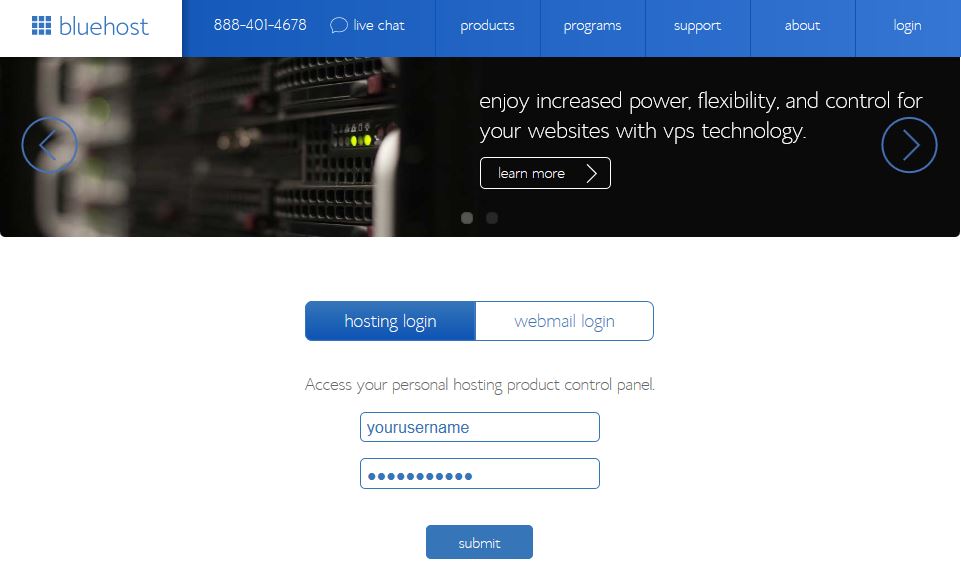
First, you have to log into your Bluehost account. You can go to this link and provide username (domain name used for account will also do) and password. Click ‘Log In’ and wait until you see your account dashboard.
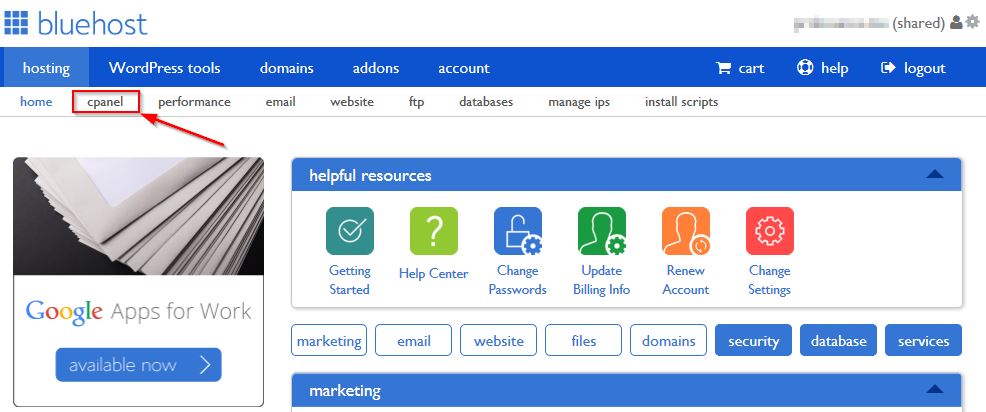
From dashboard you can see now, you have to click on ‘Go to cPanel button.
Step Two – Go To The Database Section
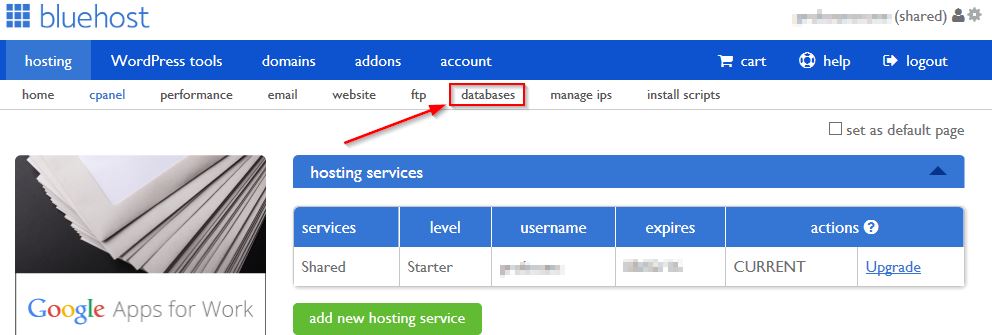
Now, you can see cPanel-based control panel of Bluehost hosting services. From tab-based menu shown above, you have to click on ‘Databases’ section, whereupon you will be lead to MySQL Databases section of cPanel, in which you can create, manage, edit and delete databases you’ve created or are there by default.
Step Three – Create The Database
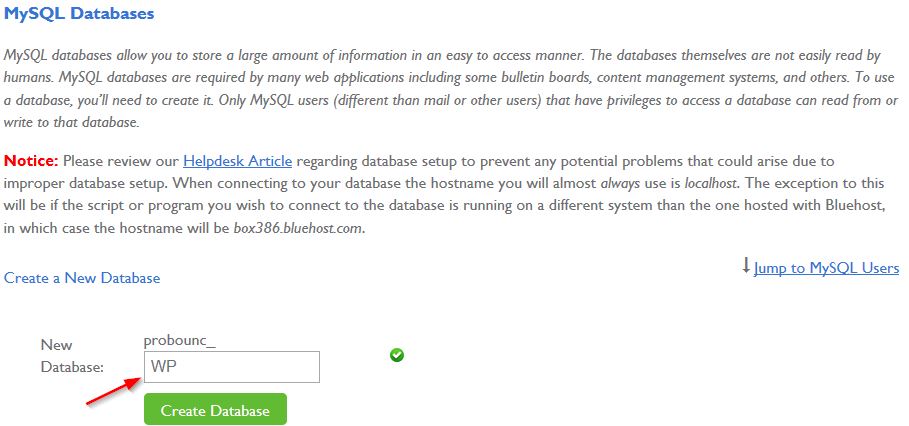
Now, in the first part of MySQL Database section itself, you can see a sub-section called ‘Create New Database’. First, you have to provide name for the new database, and it will be like your site name_databasename. Provide the name, and click on ‘Create Database’ button. If you are creating database for WordPress site or blog, you may use names as ‘WP’ or ‘Wordpress’ for easier identification in further situations.
Step Four – Create A New Database User
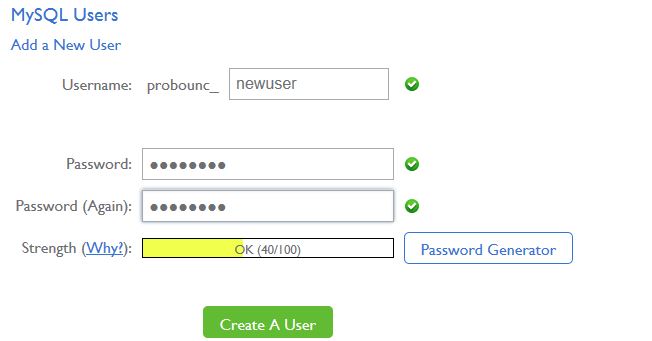
As you have finished creating a database, you have to create a database user as the next step. However, you cannot do so inside a database. On the contrary, you have to create a MySQL user first and then attach it with the DB. As we said, you can go to ‘MySQL Users’ section in the below part of page, and provide username and password to go on. If you have given username and password (more complex it becomes, more security your site gets, and you may include characters in upper and lower case, special characters etc. ), hit ‘Create User’ to finish user creation process.
Step Five – Add New Database User To The New Database
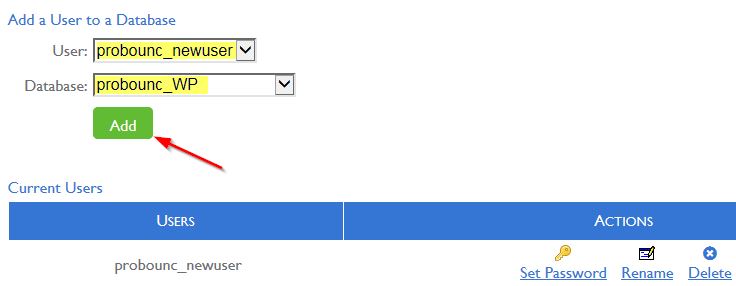
Now, as we said before, you have to add that specific user into the database you had created earlier. To do so, check for a section named ‘Add User to Database’. From that section, you have to select user from user list and database from its respective list. Once you have selected both, hit ‘Add’ button. Next, you will have to select privileges from its available list. Unless you know deep about these privileges, select all privileges and click on ‘Make Changes’. Yes, you have done it.
So, you have successfully learned how to create Bluehost databases manually and a new database user in your Bluehost account. Now, you can use this database in required situations. For instance, while setting up a WordPress website or blog. If you are not able to use a script for installing WordPress or other CMSs, running on PHP, you can use this tutorial for creating databases and integrating them with account. Do you have any doubts? We are ready to clear them for you.



Related Posts