Delete or Uninstall a Theme in WordPress on Bluehost
BlueHost allows the integration of WordPress, which is one of the best internet tools around. As we know, WordPress is one of the more reliable content management system or more known as CMS. WordPress is useful when it comes to website building and blogging. One of the features that WordPress has is allowing you to choose themes available for the website or blog that is under the use of WordPress. Themes come from free and others are paid. However you may have reasons as to why you would want to delete or uninstall some themes and for this articles we will be learning how to delete or uninstall a theme in WordPress on Bluehost.
Related Reading: Install WordPress on Bluehost
Delete or Uninstall a Theme in WordPress on Bluehost
Below are the simple steps on how to remove themes from WordPress.
STEP 1: Open your WordPress page and input the credentials required to login.
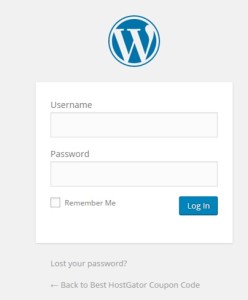
STEP 2: After successfully logging in, the page will load into the WordPress dashboard. From there at the left-side menu look for the “Appearance” and hover your cursor on it.
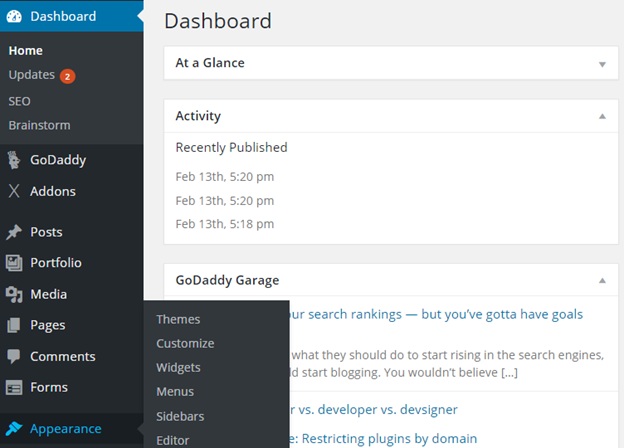
STEP 3: Another menu should pop out and from there you will find a link called “Themes” then press that part of the menu.
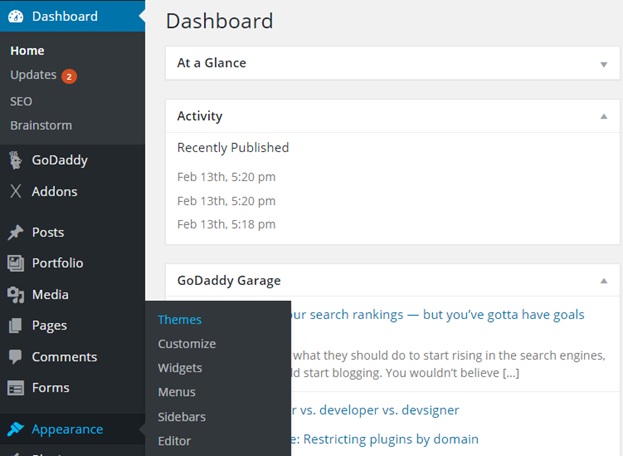
STEP 4: The themes page should be loaded showcasing all the themes that is being used or available in that WordPress account. Choose the theme that you desired to remove.
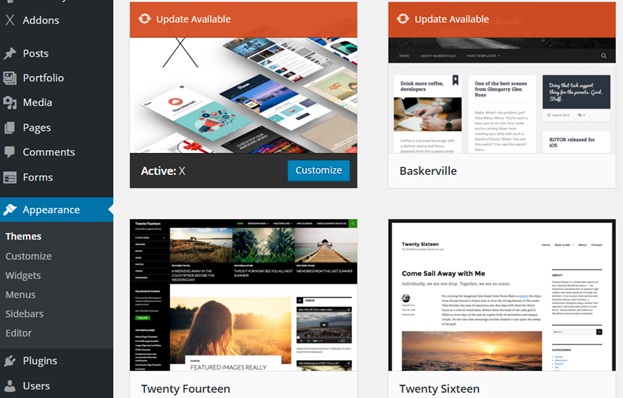
STEP 5: After choosing one of the themes that you wanted to delete click it and the page of the chosen theme would be loaded. The example below is how it would look like.
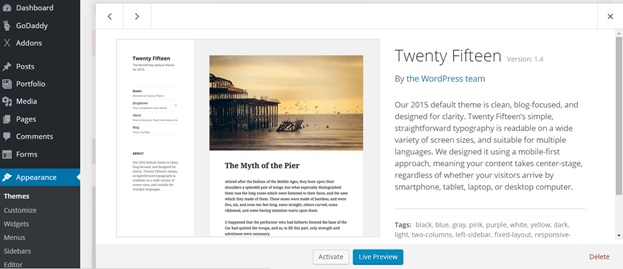
STEP 6: From the image above you will see a “Delete” option at the lower right part of the page. And if you are sure you wanted to delete that page then press delete.
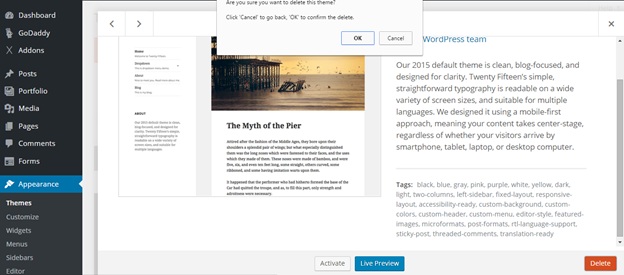
A confirmation screen of the deletion should be shown like from above and press “Ok”. And that should be it. You managed to delete a theme that you deem no longer useful or you don’t need anymore.
There you have it. The process is fairly simple isn’t it? After this for whatever reason whether it’d because you found another theme to use or don’t like the theme anymore, you are no longer mystified on how to how to delete or uninstall a theme in WordPress on Bluehost.
BlueHost: How to Install a Theme in WordPress
From above we learned how to uninstall a WordPress theme. If you wanted to let’s say to reinstall the theme that you just deleted then follow the steps below.
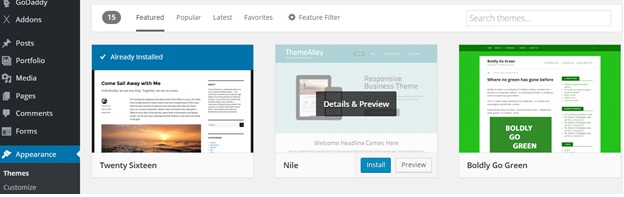
STEP 1: Go to “Appearance” on the left menu and click “Themes”, in that page you will find “Add New” button above, click it.
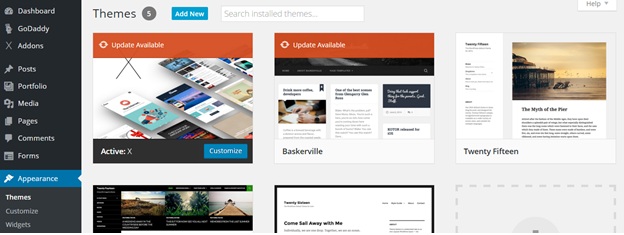
STEP 2: In the page that loaded after you pressed “Add New” you will find a list of themes that are available for installation. Let’s assume that from below that the “Nile” theme was the one you removed. You hover on the theme that you’d like to install again and upon hovering you will see a “Install” button click it.
Note: If you can’t find the theme from the page use the search bar on the top-right corner.
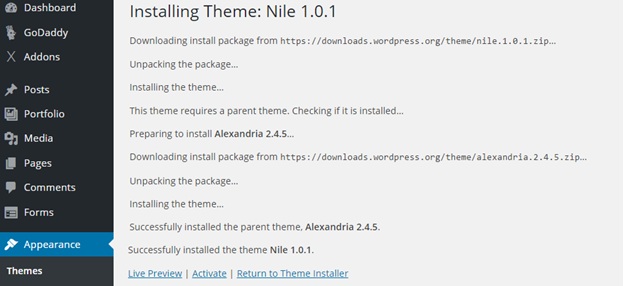
A page like the page below should pop out and now you managed to reinstall the theme that you just deleted.
Fairly simple isn’t it ?


Related Posts