Uninstall Applications Using MOJO Marketplace
Applications are part of Bluehost just like every other web hosting service providers. This also include ways of removing installed applications. One of the easiest ways is to to uninstall applications using MOJO marketplace. Bluehost has a convenient way to uninstall applications using MOJO marketplace. This is a reliable one-click management system available for Bluehost, and this article will show you how to uninstall applications using MOJO marketplace.
Note: Using MOJO marketplace will result in a total wipe of all files and databases related to the uninstalled application. Though there will be exceptions such as themes, modules, plugins, cache files and other exceptions will not be deleted. With that said, let’s gets started. Below are the simple steps available on MOJO marketplace to uninstall applications.
5 Steps to Uninstall the Applications
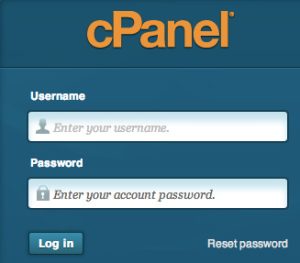
STEP 1: Go to the URL for the login screen of the cPanel account associated with your Bluehost account. Input your credentials into the login screen and select Log In.
STEP 2: Once you’ve successfully logged in, you will be in the cPanel dashboard. Find the section “MOJO marketplace”, and look for the icon that says “My Installs”. 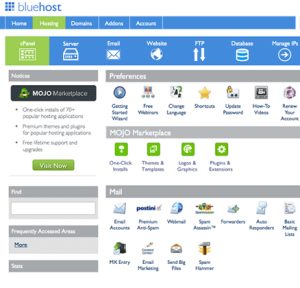
Note: You can also access “My Installs” through the top-right corner at your username. If you click it there will show the “My Installs Option”.
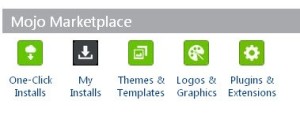
Click on “My Installs” after you’ve found it.
STEP 3: Once the page loads, it should display all of the installed apps within the MOJO marketplace.
STEP 4: Find the application that you’d like to uninstall. Then click on the “uninstall” link for that application.
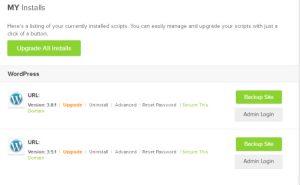
Now, there are two ways to proceed in the next step depending what you need.
If you wish to deletes all the related files, databases, and application, then you should look at Step 5a.
If you only want to delete the application, and not delete the files and databases, then you should look at Step 5b.
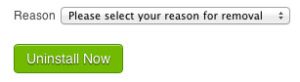
STEP 5a: This will delete the files, database, and application. First indicate the “reason” from the drop down box. Then, click on the “Uninstall Now” and this will begin the uninstall process.
STEP 5b: As mentioned before, there is a way to avoid deleting the files and database. In STEP 4, look for the “Remove from the list” to indicate what you want to remove from the list of items that will be removed during the uninstall. This will ensure the database & files related to the uninstalled app will not be deleted.

After following these steps you should be able to uninstall the desired application. Removing or uninstalling an application doesn’t seem so complicated after following the previous steps.
In Summary
The MOJO marketplace makes it easy to install and uninstall applications in Bluehost. The MOJO marketplace “one-click installs” feature makes it very easy for anybody to install or uninstall applications on our Bluehost web hosting plan.



Related Posts